How to log in to Odyssey
How to log in to Odyssey, and the different ways to sign in.
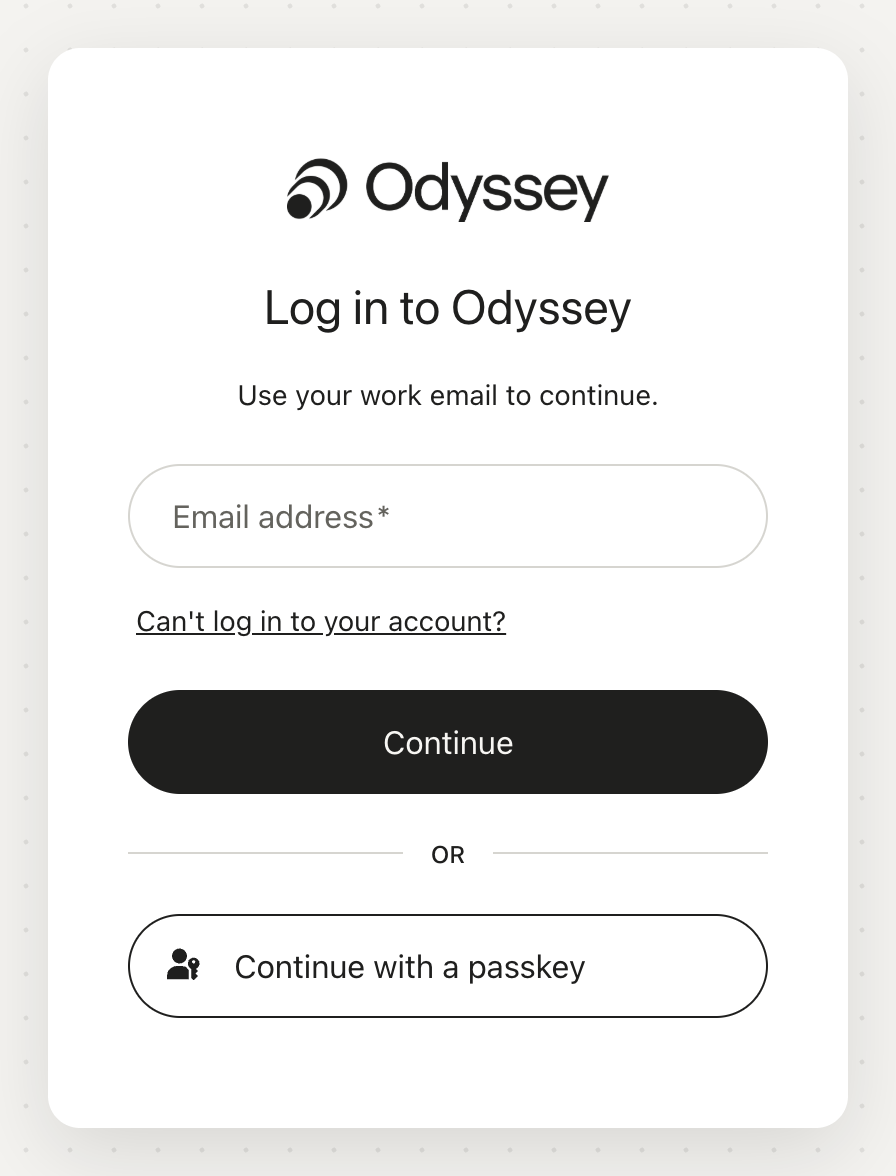
To log in to Odyssey services, go to https://login.odysseysignal.app and log in.
We support several methods and providers for logging in to our services.
You can log in with your email address and password (the Email button). If the email address you use with us is also registered with one of the providers below, you can log in with that provider instead of using a password from us. Providers we currently support:
- Google*: standalone accounts or Google Workspace accounts
- Microsoft*: standalone accounts, Microsoft 365 accounts or Azure AD (Microsoft Entra ID) accounts
To log in with one of these providers, select its button on the sign-in page.
* Your organisation decides which ways of signing in are allowed. If you choose one it doesn't allow, you will see the message “Your organisation doesn't allow this way of signing in. Use another option, or ask your administrator.”
Single sign-on: if single sign-on is activated for your organisation, select Single sign-on and enter your work email, and you are sent to your organisation’s own login. Single sign-on has to be activated for your organisation first.
Your organisation can also require two-step verification. You then confirm your sign-in with a second step, such as a code sent to your email, an authenticator app, a security key or a passkey.
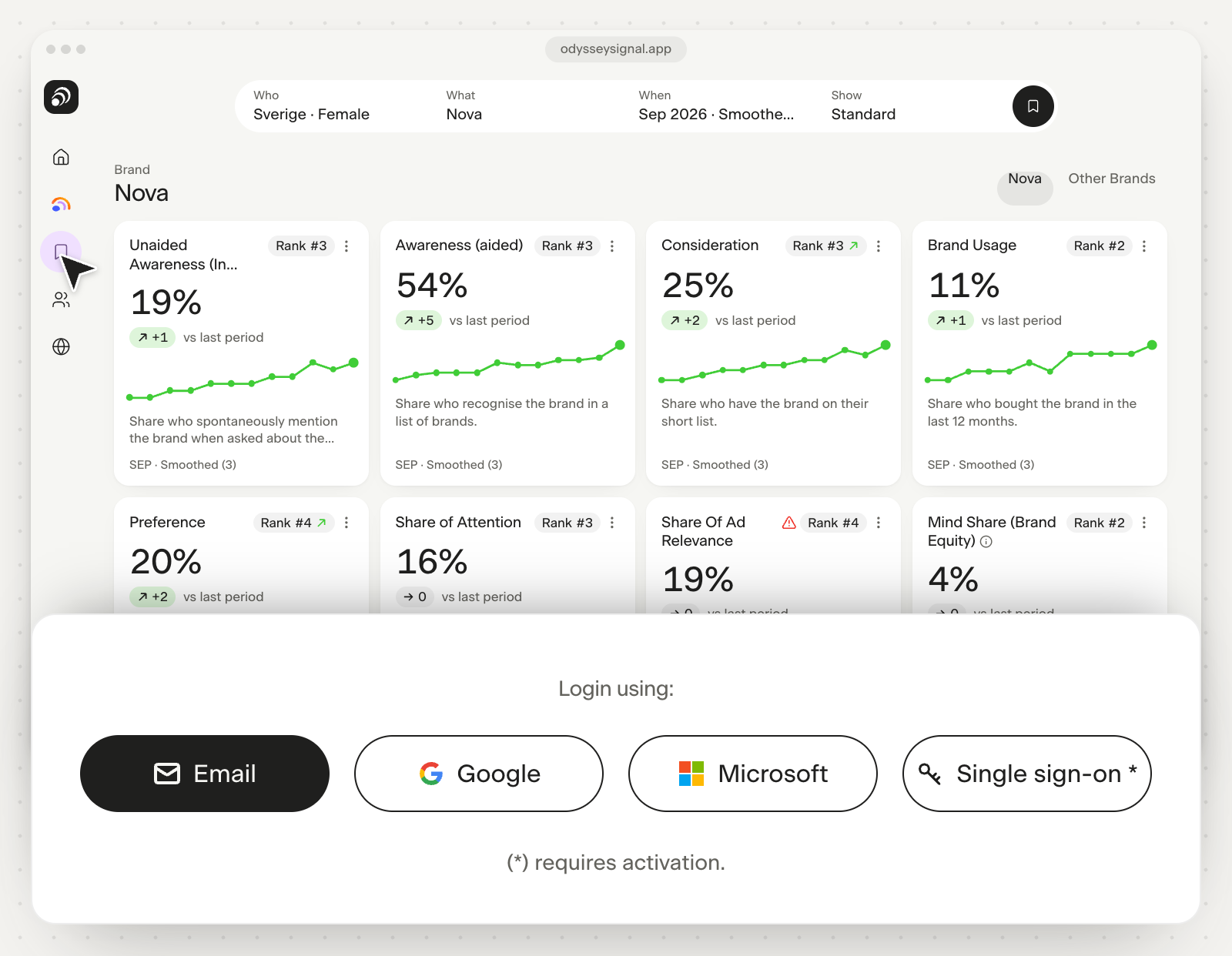
After a successful login you are sent to the app you first tried to access, or otherwise to Brand Signal.
Troubleshooting#
If you cannot log in, there may be several reasons.
Logging in with email and password#
Are you using the correct email address and password? Try resetting your password. Read more on how to reset your password.
If resetting your password did not work, your account might be blocked. Contact our support by chat or support (at) odyssey.se and we will help you.
Logging in with a passkey#
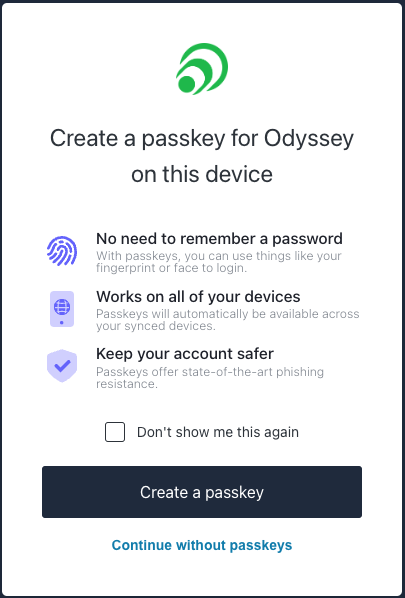
Passkeys do not replace logging in with your email and password: you can still log in with your email and password at any time. Passkeys make logging in more secure and easier. A secure credential is stored on your device and can be used to log in to any website we host on our domain. It works like a trust setup between your device and Odyssey services.
The first time you log in, if your device and browser support passkeys, you are asked whether you want to use a passkey on that device. After that you can always log in with the passkey instead of your email and password on that device. If you use several devices, you need to set it up on each of them. Some technology companies, like Apple, synchronise passkeys between devices, and many more are following.
Log in today and follow the instructions on screen to set it up. Contact us if you want more information or help setting it up. You can opt out at any time by deleting the passkey from your device.
Logging in with a third-party provider (Google or Microsoft)#
If you cannot log in with a third-party provider, there might be an issue with that provider, and you need to contact its support.
If you are sent back to the Odyssey login page after successfully logging in with your provider, the issue is probably on the Odyssey side.
Contact our support by chat or support (at) odyssey.se and we will help you.
Last reviewed 26 August 2025