Filters, periods and saved views
Choose markets, segments, brands and periods with Who, What, When and Show, apply your changes, and save the filters you use often.
The filter bar above the widgets decides what every widget on the page shows. It has four parts and a button at the end.
| Part | What you choose |
|---|---|
| Who | The market, and segments that narrow the answers to a group, such as an age group, a gender or a region. |
| What | Your brand or product, and the competitors to compare it with. |
| When | The period, how it is smoothed, and what changes are compared with. |
| Show | How figures are shown, such as averages, change indicators, ranks, decimals and low-base warnings. It reads Standard, or Custom when you have changed something. |
Change and apply#
Step 1: Make your choices
Select Who, What, When or Show and choose what you want. You can change several parts before you apply.
Step 2: Apply
Select Apply (✓) at the end of the bar. The page does not change until you do.
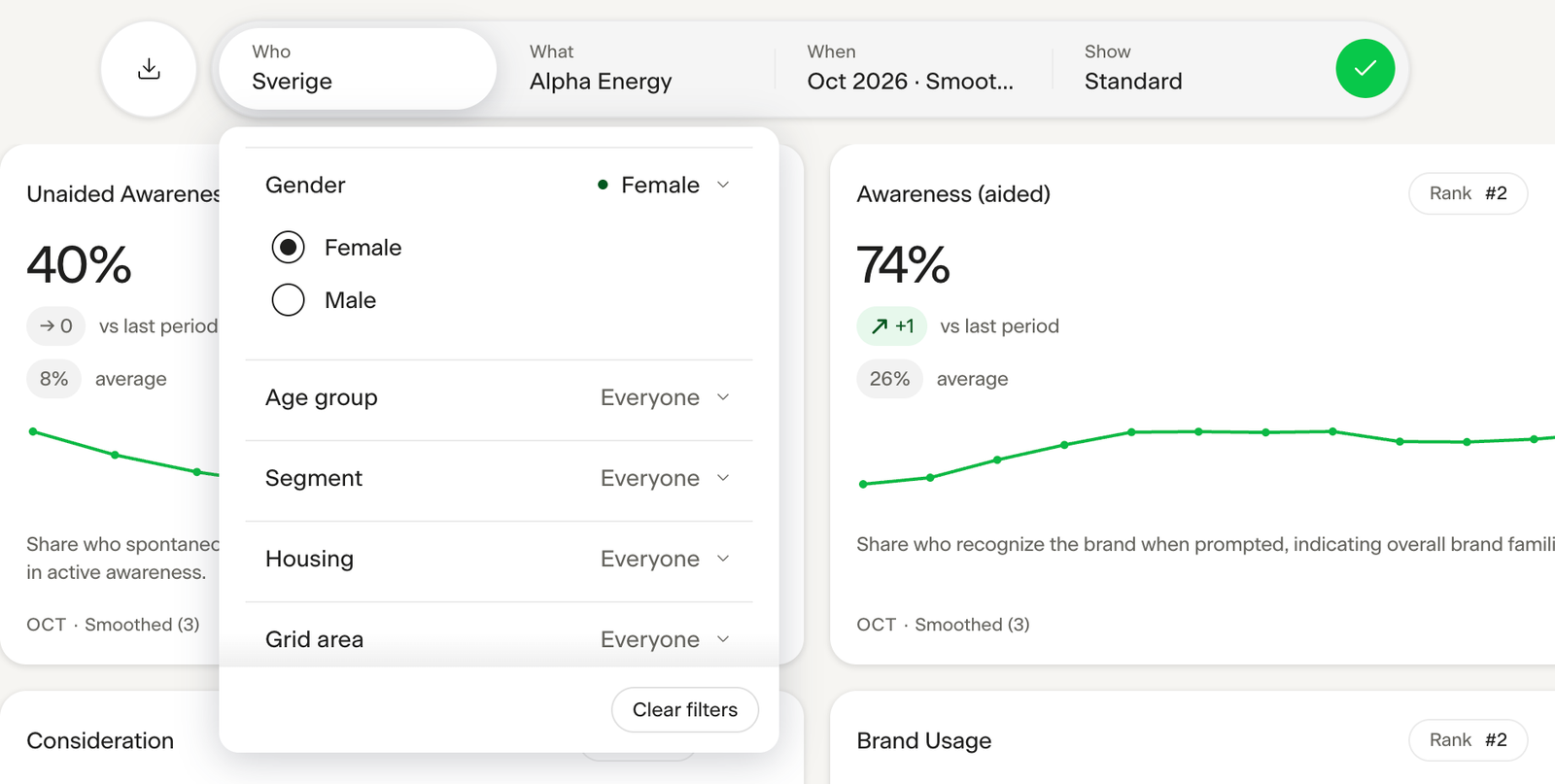
Each part has a reset at the bottom: Clear filters in Who, Reset selection in What, Reset period in When and Reset settings in Show.
On a phone, the bar is one button. It opens What you see, with the same four parts, Reset to defaults and Save these filters.
Periods#
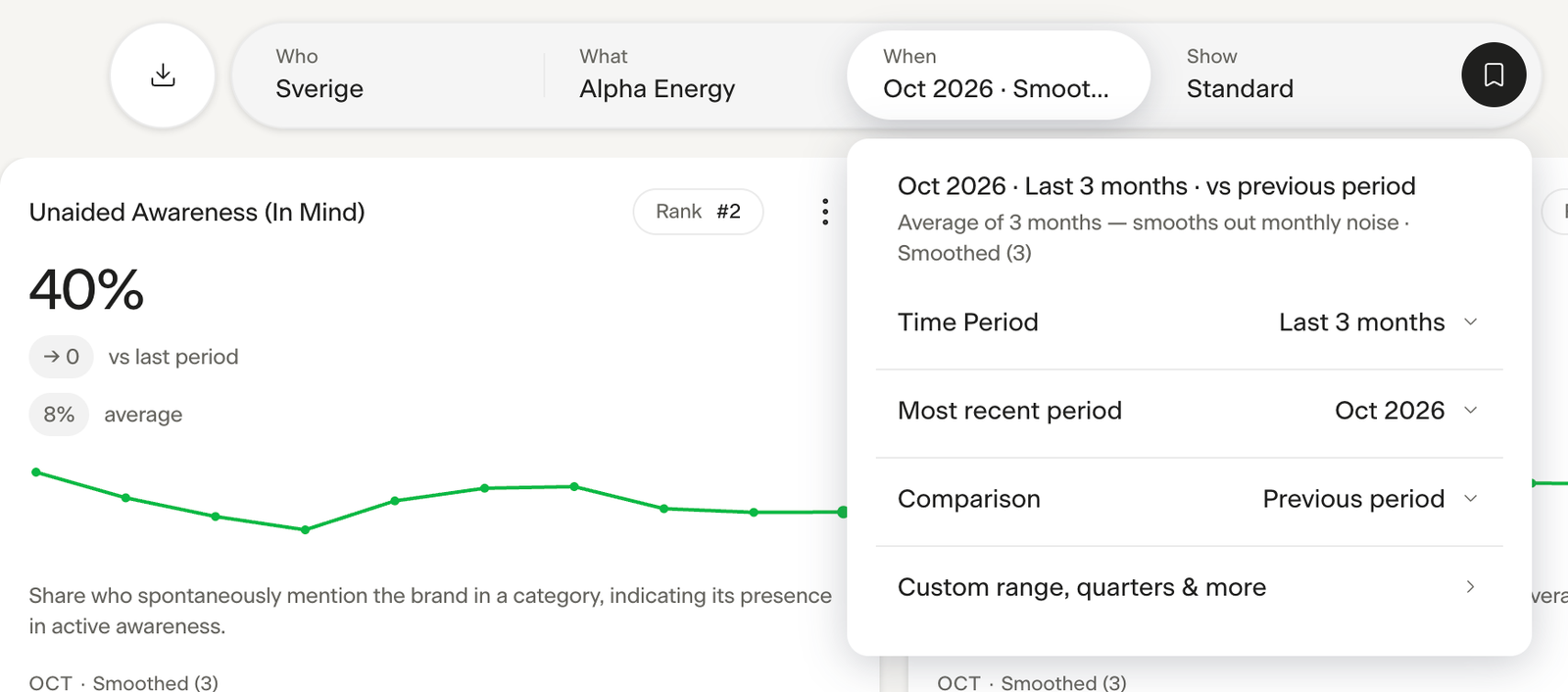
Under When you choose the period:
| Choice | What it does |
|---|---|
| Time Period | How much time each figure covers: one month, or the last 3, 6, 9 or 12 months, and the same for quarters, half-years and years. Several months together are averaged and marked Smoothed, which evens out short swings. |
| Most recent period | The latest period shown. Choose an earlier one to look back. |
| Comparison | What changes are measured against: no comparison, the previous period, the same period last year, or the average of the last 12 months. The options depend on the time unit. |
| Custom range, quarters & more | More settings: the display unit (month, quarter, half year, year or a custom range), from and to, smoothing and comparison, with a preview of what you will see. |
A period that is not complete yet is marked as partial. Its figures can still change.
Filters follow you#
The filters you apply stay with you as you move between the pages of a Signal in the same browser tab. To reset every filter and setting at once, choose Clear Session Cache in the profile menu.
Some widgets also have their own choices in their header. They apply to that widget only. See Dashboards and widgets.
Saved views#
Save the filters you use often as a view, and switch back to them in one click.
Step 1: Set the filters
Choose and apply the filters you want to keep.
Step 2: Save them
Select Save view (the bookmark at the end of the bar), then Save these filters.
Step 3: Name the view
Give it a name, untick anything you do not want saved, and select Save.
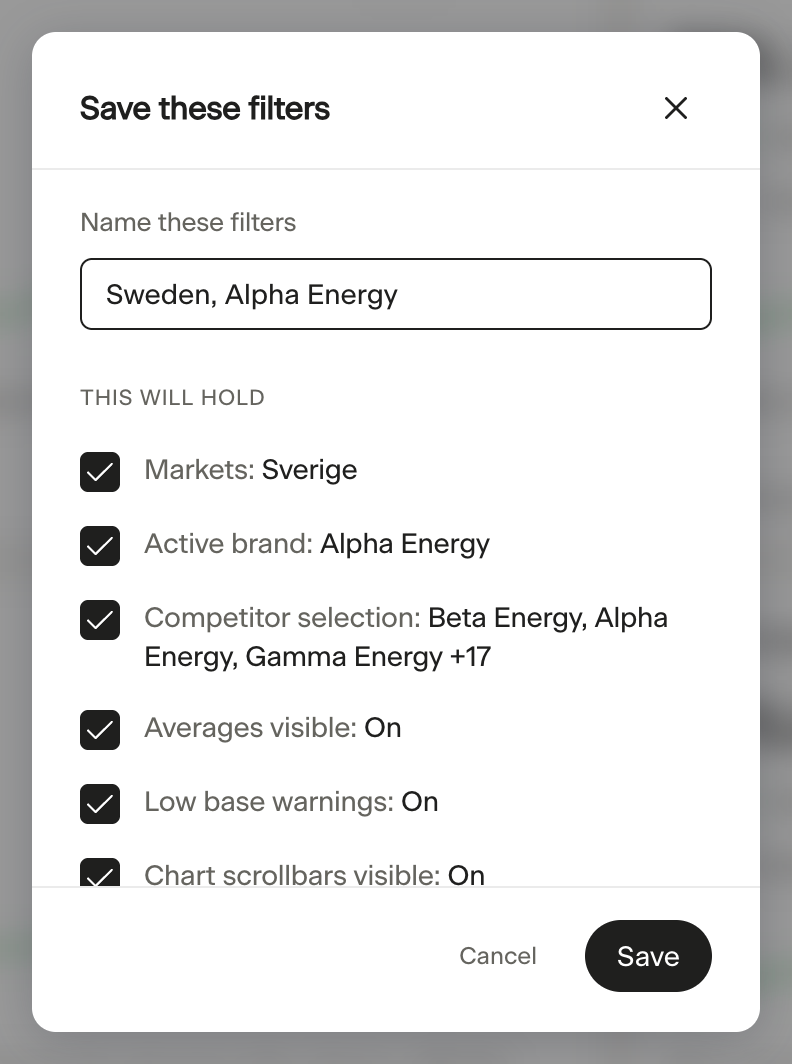
The period is not saved with a view: it stays as you have it. To switch view, select Save view and choose one from the list. Default view takes you back to the Signal's defaults.
When you change the filters of a saved view, you can update the view or save the changes as a new one. Use the pencil next to a view to rename or delete it.
Your saved views are yours, kept for each Signal, and listed on Home.
Last reviewed 9 November 2026